Pic Prune / Guide
How to delete duplicate photos on iPhone
Your iPhone merges the exact copies in about two minutes. The harder half is the near-identical shots it leaves alone, which is where most of the space is.
 Pic PruneUpdated
The short version
To delete duplicate photos on an iPhone, open Photos, tap Collections, scroll to Utilities, and tap Duplicates. Select the sets you want and tap Merge. iOS keeps the best copy and moves the rest to Recently Deleted, where you have 30 days to change your mind.
That handles exact copies. It won't touch the nine frames from one burst or the fourteen tries at the same photo, because those are genuinely different files. Clearing those is a separate job, and it's covered further down.
Use the Duplicates album first
Since iOS 16, Photos finds duplicates on its own and puts them in their own album. It's free, it's already on your phone, and it should be your first stop whatever else you end up doing.
- Open Photos.
- Tap Collections, then scroll down to Utilities.
- Tap Duplicates.
- Tap Merge on a set, or tap Select and then Merge to clear several at once.
Merging keeps the highest-quality version and combines the relevant data from the copies, then moves the leftovers to Recently Deleted. Nothing disappears immediately.
If the album isn't there: that usually means Photos has not found any exact duplicates, rather than that something is broken. The album only appears when it has something to show. After a big iOS update or a library restore it can also still be scanning, which happens in the background while the phone is locked and charging.
What iOS actually counts as a duplicate
This is the part that catches people out, and it explains why the album so often frees up less than expected.
Photos looks for exact duplicates: the same image saved twice. That happens more than you would think, usually when you save a photo someone sent you, export and re-import the same shot, or restore a backup twice.
What it doesn't touch is the near-identical shots. Nine frames from one burst. Fourteen attempts at the same photo of the same coffee because the light kept changing. Three versions of a group photo where somebody blinked in two of them.
Every one of those is a genuinely different file, with different pixels. None of them is a duplicate by any definition Photos could safely act on, so it leaves them alone, and it's right to. It has no way of knowing which one you wanted.
That is also where most of the space is. A duplicate pair wastes one photo's worth of storage. A burst of nine wastes eight.
Your phone only looks for one of these
An exact copy
The same file, saved twice. Photos merges them, and it's right to.
2 files · 1 kept
Nine tries at one sunset
Every frame is a different file, so nothing here is a duplicate. That is why they're still on your phone.
9 files · 1 worth keeping
Pic Prune groups the second kind. That is the whole job.
Clearing the near-duplicates
For the shots that are nearly the same you have two honest options, and they trade time against effort rather than one being obviously better.
By hand, in Photos
Free, and completely under your control. Open a day or a moment in your library, scroll to a run of similar shots, tap Select, tap the ones you don't want, and delete them.
This works and it costs nothing. It is also slow in a specific way that matters: comparing two similar photos on a phone screen means tapping into one, tapping back, tapping into the other, and trying to hold the difference in your head. Most people give up somewhere around 2019.
If you only want the space back and don't much mind which frame survives, there's a shortcut: go to Settings → General → iPhone Storage and look at what Photos is actually using. Often the real problem turns out to be video rather than photos at all. One minute of 4K at 60fps is roughly 400 MB, which is about 160 photos. If that's your situation, duplicates are a distraction and you should deal with the video first.
With an app that groups them
The reason apps exist for this is the comparison problem, not the deletion problem. Deleting is easy. Deciding is the work.
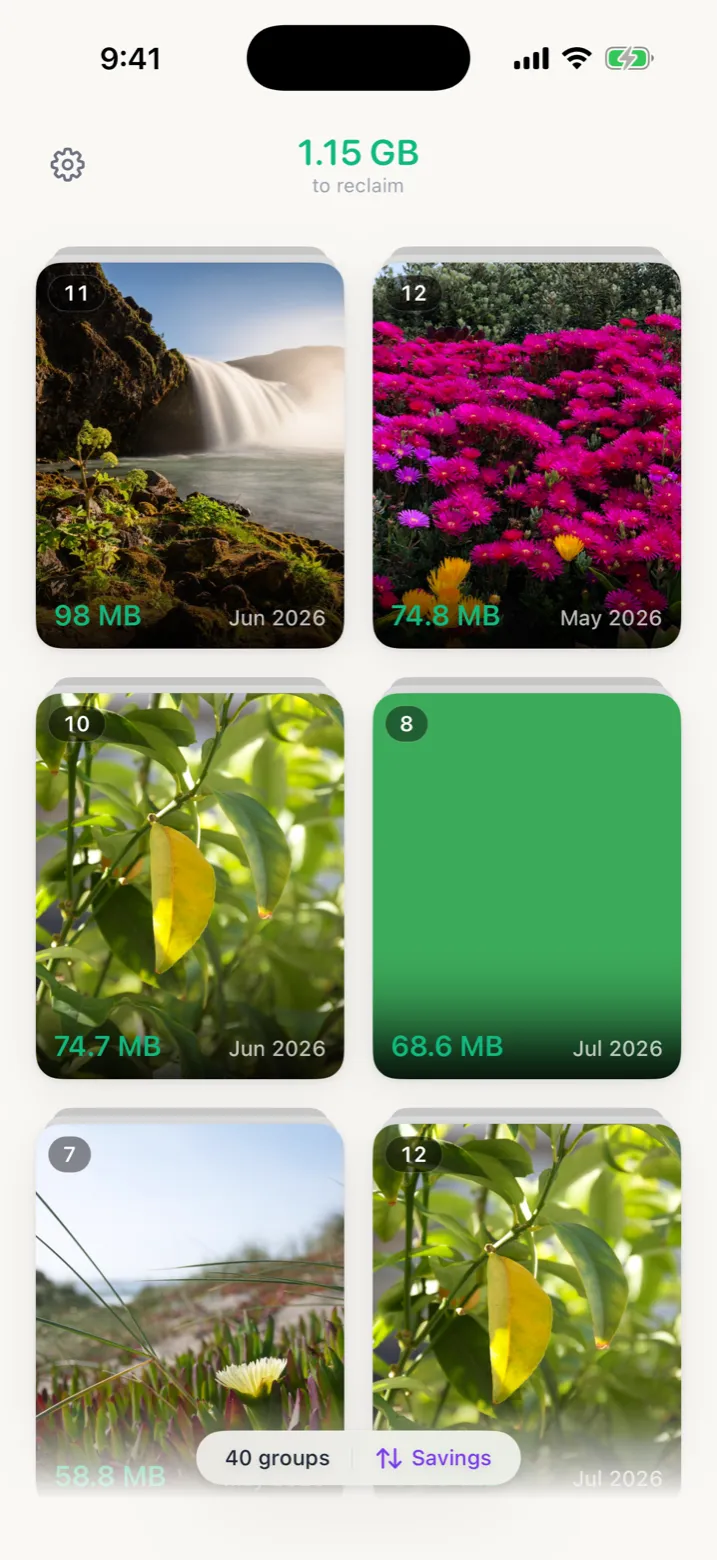
This is what Pic Prune does with the near-duplicates: it gathers the shots you took seconds apart into groups, and tells you what each group is costing you, so you can start with the worst one rather than scrolling from the beginning.
You then compare two at a time, side by side, and tap the one to keep. Your photos never leave your phone: the grouping runs on your iPhone using Apple's Vision framework, and there's no account.
Screenshot of the app interface. The groups and figures shown are sample data, not a typical result: what you would recover depends entirely on your own library.
Whichever app you use, including ours, two things are worth checking before you let it near twelve thousand photos:
- Does it process on-device? Plenty of photo cleaners upload your library to a server to do the comparison. Your photos are not a thing to hand over lightly.
- Does it delete, or does it ask? Anything that empties an album for you without a confirmation step is a bad trade, however good its detection is.
What this does to your iCloud bill
Worth being straight about, because it's usually the actual reason people start deleting photos in the first place.
iCloud bills you for what you store. If your library shrinks, your usage shrinks. Whether that lowers the bill depends on whether it takes you under a plan boundary: going from 190 GB to 140 GB saves you nothing if you're on the 2 TB plan, and saves you a monthly fee if it drops you from just over 50 GB to under it.
Check where you actually sit in Settings → [your name] → iCloud → Manage Account Storage before assuming either way.
iCloud Photos is a sync, not a backup. If it's switched on, deleting a photo on your iPhone deletes it from every device signed into that account. There is no separate copy sitting safely on the iPad.
When it doesn't work
Two things go wrong often enough to be worth naming.
The storage number didn't move. Photos you delete sit in Recently Deleted for 30 days and still count against your storage for the whole period. If you're trying to get under a threshold now, open Collections → Utilities → Recently Deleted, tap Select, then Delete All. Otherwise it clears itself.
The Duplicates album never finished. Detection runs while the phone is locked and charging, and it competes with everything else iOS does in that window. Leaving it plugged in overnight is genuinely the fix. On a very large library it can take more than one night.
Questions people actually ask
Why is my Duplicates album empty?
Usually because Photos has not found any exact duplicates, which is the most common outcome. The album only appears under Collections → Utilities when there is something in it. It can also still be scanning: the detection runs in the background while your iPhone is locked and charging, and after a big iOS update or a library restore it can take a day or more to finish.
Does merging duplicates lose any quality?
No. Merging keeps the highest-quality version of the set and combines the relevant metadata from the others, then moves the leftovers to Recently Deleted. You do not lose the best copy.
Will deleting duplicates on my iPhone delete them everywhere?
If iCloud Photos is switched on, yes. The library is synced, so deleting on one device removes the photo from all of them. That is working as intended, but it surprises people who assumed their iPad held a separate copy.
Why has my storage not gone down after deleting?
Deleted photos sit in Recently Deleted for 30 days and still count against your storage the whole time. To get the space back immediately, open Collections → Utilities → Recently Deleted, then Select and Delete All. Otherwise it clears itself after 30 days.
Is there a free way to delete near-identical photos?
Yes: select them by hand in Photos and delete them. It costs nothing and it works. The reason apps exist for this is not the deleting, it is the comparing, which is slow on a phone screen when the two shots are nearly the same.
Do photo cleaner apps upload my photos?
Some do, and it's worth checking before you let one near your library. Pic Prune doesn't: your photos never leave your phone. The grouping runs on your iPhone using Apple's Vision framework, and there's no account to create.
Where to go next
- How to Delete Duplicate Photos in iCloud. There is no way to clear duplicates on iCloud.com. You do it on an iPhone or iPad and the change syncs, which is why the job is quicker than it looks.
- How to Delete Duplicate Photos on iPad. The iPad has the same Duplicates album as the iPhone, in the same place, and one sync behaviour that surprises people who use both devices.
- How to Find Duplicate Photos on iPhone. Where the Duplicates album lives, why it is sometimes empty or missing, and how to find the near-identical shots iOS does not count as duplicates at all.
- How to free up iPhone storage. The wider job, if photos turn out not to be your biggest problem.
- All articles. More on photo storage, iCloud and keeping a library under control.